Showing posts with label VS2010. Show all posts

Friday, January 7, 2011

How to: Debug with Code Center Premium Source (In Detail)

This article is an extensive update to the MSDN article of the same name. I saw that article two months ago and it was only with the help of Microsoft C++ MVP John Czopowik that I was able to make Windows Source Debugging work under Visual Studio 2010. I hope this article saves other people from the same frustration.

These instructions are for developers who have a Windows source code license and access to Code Center Premium.

To prepare for debugging with Code Center Premium

  1. Close all copies of Visual Studio that are running (this is required or VS will overwrite your registry changes.)
  2. Connect your SmartCard reader and insert the card you obtained from the Shared Source Initiative.
  3. Windows Vista and Windows 7 will need to contact Windows Update to install a Gemalto driver. Make sure that you allow this to happen. (Windows XP: See the instructions that came with the card reader.)
  4. Make sure your smart card certificate is working by opening Internet Explorer and going to https://codepremium.msdn.microsoft.com/. You should see prompts as shown in Steps 3 to 6 under Sample Walkthrough, below. This must work properly before you proceed with these instructions. Do not use Firefox because Firefox does not support smart card authentication!
  5. Open the Registry Editor and go to: HKEY_CURRENT_USER\Software\Microsoft\VisualStudio\10.0\Debugger
  6. Set both SecureSourceLocalDirectory and SourceServerExtractToDirectory to the same directory. The directory does not have to already exist.
  7. Launch Visual Studio.
  8. On the Tools menu, click Options.
  9. In the Options dialog box, open the Debugging node and click General.
  10. Clear the Enable just my code (Managed only) check box.
  11. Select Enable Enable source server support.
  12. Select Print source server diagnostic messages to the Output window.
  13. Clear Require source files to exactly match the original version.
  14. Under the Debugging node, click Symbols.
  15. In the Symbol file (.pdb) locations box, clear the Microsoft Server Symbols check box and add the following location:

    https://codepremium.msdn.microsoft.com/symbols

    Move this location to be second in the list to ensure that these symbols are loaded first. (You can't move it to the top. Microsoft Symbol Servers is always first, but you should have unchecked it.) Visual Studio 2005 and 2008 users: In the screen shot below, note the third entry in this list, C:\Windows\symbols\dll. This directory is where the MFC and C run-time symbols are installed by Visual Studio. These symbols are not part of Code Center, so you need to include them if you want to debug into MFC or the C run-time library. Visual Studio 2010 users: You don't need the reference to C:\Windows\symbols\dll. Visual Studio always looks there, even if it's not in this list.
  16. In the Cache symbols in this directory box, enter a location such as C:\symbols where Code Center Premium can cache the symbols. This location should be DIFFERENT from the location used to store public symbols when Microsoft Symbol Servers is checked because symbols already downloaded from the Microsoft Symbol Servers will prevent symbols being downloaded from Code Center Premium.
  17. Click OK.
  18. Right-click the Solution under Solution Explorer and choose Properties:
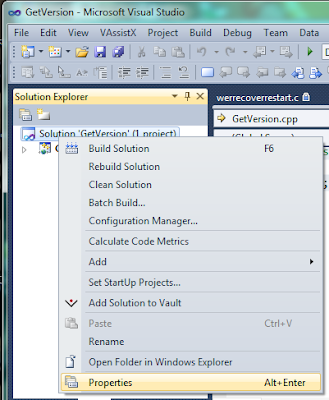
  19. Under Common Properties, select Debug Source Files.
  20. Add a link for the desired operating system (complete list at the end of this article.) For example:

    https://codepremium.msdn.microsoft.com/source/Windows%207/RTM

    Note that spaces must be replaced with %20, and you cannot browse to this location in your browser.

  21. In the same window, make sure that the list under Do not look for these source files is empty.
  22. Click OK.
  23. Close and restart Visual Studio to ensure that settings are persisted.

Sample Code

Here is sample code that I used for testing. It's a native code console application that can be tested under x86 or x64:

#include "stdafx.h"

#include <windows.h>
#include <shlwapi.h>

#pragma comment(lib, "shlwapi.lib")

int _tmain(int argc, _TCHAR* argv[])
{
  // Can't step into this function. You get a "not indexed" error.
  //char buf[256]={'\0'};
  //::PathRemoveExtensionA(buf);

  // Set a breakpoint on this function, then try to Step Into it.
  GetConsoleMode(0,0);

  // Stepping into this function should work too, but not on XP.
  //UnregisterApplicationRestart();

  return 0;
}


Sample Walkthrough

  1. Set a breakpoint at GetConsoleMode in the sample code.
  2. Start debugging (F5).
  3. You should see the Confirm Certificate window. If not, your smart card isn't working.
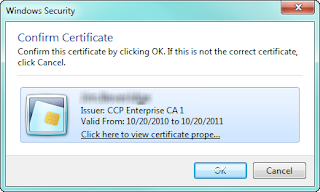
  4. Click OK.
  5. You'll be asked to enter your PIN. You received this in your email confirmation that welcomed you to Code Center Premium.
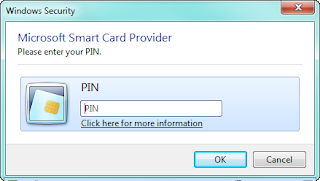
  6. Enter your PIN and click OK.
  7. It may take a while to get started because the private symbols must be downloaded. Since they contain full debug information, they are much larger than the usual symbols.
  8. When Visual Studio stops at the breakpoint, look at your Modules window. Here's how it appears on my Windows 7 64-bit machine: (click it to see it full size.)

  9. Note that kernel32.dll shows "Symbols loaded", whereas KernelBase.dll shows "Symbols loaded (source information stripped). If kernel32.dll also shows "(source information stripped)", then you are using the wrong symbols. The most likely cause is if you didn't set a different cache directory for private symbols.
  10. Also note that the timestamp for both kernel32.dll and KernelBase.dll is 7/13/2009. This means that they are RTM DLLs for Windows 7. The timestamp for ntdll.dll is 3/23/2010, which means that it's been updated and you can't step into it. So it is possible to debug on a patched system, but it's hit or miss because many DLLs have been patched and so can't be stepped into.
  11. Now you will see a window asking to execute an untrusted command named SD.EXE:
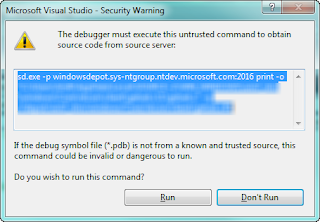
  12. This command will be executed by the Source Server at Code Center Premium. It will NOT be executed on your computer. You do not need to have SD.EXE on your computer.
  13. Click Run.
  14. You should now be looking at Windows source code.
  15. If you look at the Output window, you should see messages such as the following: (some NDA information removed.)

    SRCSRV: sd.exe -p windowsdepot.sys-ntgroup.ntdev.microsoft.com:2016 print -o "C:\Users\JimB\AppData\Local\SOURCE~2\WIN_WINDOWS\win7_rtm\windows\yyy\yyy\yyy\yyy.c\1\yyy.c" -q //depot/win7_rtm/windows/Core/xxx/xxx/xxxxx.c#1

    SRCSRV: Source server cannot retrieve the source code for file 'd:\w7rtm\windows\zzz\zzz\zzz\zzz.c' in module 'C:\Windows\System32\kernel32.dll'. The system cannot find the file specified.
  16. Note that Source Server is actually showing an error. In spite of this, debugging still works properly.

Things That Don't Work

  • You can't debug into 32-bit code running under a 64-bit operating system. In other words, you can't debug into any DLL that lives in \Windows\SysWOW64. (Remote debugging into a 32-bit virtual machine running under a 64-bit operating system is okay.)
  • You can't debug any hot fixes, security fixes or operating system updates. You can ONLY debug the RTM release or a service pack. In practice, this usually means that you are remote debugging a virtual machine that was installed from the DVD and Windows Update has been turned off.
  • You can't debug when running Visual Studio under Remote Desktop because the smart card doesn't work when you are logged in under Remote Desktop. (LogMeIn and GotoMyPC are not tested.)
  • The debugger won't step into some Windows functions. This usually means that you are trying to step into a DLL that's been updated since the original release.
  • Some functions are in files that Code Center Premium can't find. One example is PathRemoveExtensionA in shlwapi.dll. For files that can't be found, you'll see a "not indexed" error in your Output window:

    SRCSRV: o:\w7rtm.obj.amd64fre\shell\shlwapi\srca\objfre\amd64\patha.cpp not indexed

Troubleshooting

Everything has to be exactly right for source code debugging to work properly. If things aren't working, here are some ideas:
  • Is your smartcard working?  (Repeat Step 4 under Prepare for debugging, above.)
  • Did Visual Studio overwrite your registry entries? This usually leads to the error "SRCSRV: ... The system cannot find the file specified." (Repeat Step 5.)
  • Did the file get added to the list of Do not look for these source files? (See Steps 18 through 22.)
  • Are you debugging a 32-bit app on 64-bit Windows? You can't debug Windows source in this case. Run the 32-bit code on a 32-bit version of Windows in a virtual machine and use Remote Debugging.
  • Are you trying to step into the Windows kernel? Kernel debugging is different from user mode debugging. You must use WinDbg for kernel mode debugging.
  • Is the source code missing on Code Center Premium? This would be the case if you are getting the error SRCSRV: ... not indexed. Please see the section below titled ANSI versus Unicode Functions.
  • Are you seeing a warning about an "Untrusted Command"? This is normal. Just click Run.
  • Can't step into a Windows API function? Make sure you have symbols for the DLL. Look in the Modules list and make sure that it does NOT say "Source information stripped." If it does, clear your symbol cache and run your app again.

Running Visual Studio in a Virtual Machine

You can install Visual Studio 2010 on your Windows 7 clean machine and run Visual Studio 2010 in the virtual machine so you don't have to use remote debugging. However, you must use a virtual machine that supports USB devices, such as VMware or Virtual PC in Windows 7. Virtual PC 2007 will not work (not even with SP1.)

In Virtual PC on Windows 7, go to the USB menu and select USB SmartCard Reader. You will be prompted to install the drivers in the virtual machine. The smart card will be DISCONNECTED from the host system, so you will not be able to use it in the host machine until the virtual machine releases it.

You do not need to do this if you are using Remote Debugging to run your application in the virtual machine.

ANSI versus Unicode Functions

Debugging into the "A" and "W" versions of functions frequently doesn't work. Here is the explanation from C++ MVP Jochen Kalmbach:

The problem with " PathRemoveExtensionA" seems to be a "build feature". They implemented the file only once for A and W and then you uses this file without "A, W"... In this case, the source file is called "path.c" and is referenced as "patha.c" (A) and "pathw.c" (W).

If you want to debug into this files, you need just to copy the source from the CCP-Website for the "TCHAR" version and save it wherever you want with the name "patha.c" and/or "pathw.c". Then if VS askes you for the file, you can just use this file. It will exactly match.

It seems that this file is generated during the build-process, because it seems that it is also compiled from the output directory...

Source Server Paths

(Thanks again to C++ MVP Jochen Kalmbach for providing this list.)

Here is the list of all currently available source server paths. Links are not clickable because these links are only for use in Visual Studio, not in your browser.

Win7 RTM: https://codepremium.msdn.microsoft.com/source/Windows%207/RTM


W2k8 RTM: https://codepremium.msdn.microsoft.com/source/Windows%20Server%202008/RTM

W2k8 Hyper-V-RTM: https://codepremium.msdn.microsoft.com/source/Windows%20Server%202008/Hyper-V%20RTM

W2k8 SP2: https://codepremium.msdn.microsoft.com/source/Windows%20Server%202008/SP2

W2k8 R2: https://codepremium.msdn.microsoft.com/source/Windows%20Server%202008/R2


W2k3 RTM: https://codepremium.msdn.microsoft.com/source/Windows%20Server%202003/RTM

W2k3 R2: https://codepremium.msdn.microsoft.com/source/Windows%20Server%202003/Windows%20Server%202003%20R2

W2k3 SP1: https://codepremium.msdn.microsoft.com/source/Windows%20Server%202003/Windows%20Server%202003%20SP1%20RTM

W2k3 SP2 RC: https://codepremium.msdn.microsoft.com/source/Windows%20Server%202003/Windows%20Server%202003%20SP2%20RC

W2k3 SP2: https://codepremium.msdn.microsoft.com/source/Windows%20Server%202003/Windows%20Server%202003%20SP2%20RTM


Vista Beta1: https://codepremium.msdn.microsoft.com/source/Windows%20Vista/Beta%201

Vista Beta2: https://codepremium.msdn.microsoft.com/source/Windows%20Vista/Beta%202

Vista RC1: https://codepremium.msdn.microsoft.com/source/Windows%20Vista/RC1

Vista RTM: https://codepremium.msdn.microsoft.com/source/Windows%20Vista/RTM

Vista SP1: https://codepremium.msdn.microsoft.com/source/Windows%20Vista/SP1

Vista SP2: https://codepremium.msdn.microsoft.com/source/Windows%20Vista/SP2


XP RTM: https://codepremium.msdn.microsoft.com/source/windows%20XP/RTM

XP SP1: https://codepremium.msdn.microsoft.com/source/windows%20XP/SP1

XP SP2: https://codepremium.msdn.microsoft.com/source/windows%20XP/SP2

XP SP3: https://codepremium.msdn.microsoft.com/source/windows%20XP/SP3

XP 64-bit:  Not available.


W2k Datacenter RTM: https://codepremium.msdn.microsoft.com/source/Windows%202000/Datacenter%20RTM

W2k SP3: https://codepremium.msdn.microsoft.com/source/Windows%202000/SP3

W2k SP4: https://codepremium.msdn.microsoft.com/source/Windows%202000/SP4

Saturday, September 11, 2010

Lightning Fast Builds with Visual Studio 2010 and an SSD

I reduced my Visual Studio 2010 C++ build time from 21 minutes to  7  5 minutes! You can too. Here's how.

I'm a build performance junkie. If there's one thing I really hate in life, it's sitting around waiting for builds to complete. Fifteen years ago, the very first article I published was titled Speeding Up Visual C++. It was all about making Visual C++ 1.51 go faster on what was then a state of the art computer - an ISA bus Gateway DX2/50. Woo hoo! My recommendations were:
  1. Use Precompiled Headers.
  2. Upgrade to 16MB of memory.
  3. Use 4 megabytes of Disk Cache.
  4. Upgrade your Hard Drive to Fast SCSI or Enhanced IDE.
  5. Turn off Browse Info.
  6. 32 Bit File Access.
Today computers are thousands of times faster, but rotating platter disk drives are still desperately slow. The seek time of 7200RPM drives has changed very little in the last ten years, although the transfer rate for sequential files has risen dramatically. That problem, combined with Visual Studio's desire to create hundreds of .tlog temporary files, quarter gigabyte .sdf files, and project size bloat means that the average build may be even slower today than it was fifteen years ago.

Historically, your CPU would be sitting idle most of the time waiting for the hard disk to keep up. Linking performance is based almost entirely on your disk's random access read/write performance. The highly rated Western Digital Caviar Black can only perform about 100 random access IOPS (I/O Operations Per Second.) It takes multiple I/O operations per OBJ file, so a significant fraction of the link time is waiting for the hard drive to do its job.

Enter the latest generation of SSDs driven by the Sandforce Controller, such as the OCZ Vertex 2. These drives can do over 40,000 IOPS - 400 times faster than a Caviar Black. And Visual Studio 2010 build performance is phenomenal. In fact, these drives are so fast that their impact on build time is negligible. This SSD will easily hit over 50MB/sec of 4KB random writes. In contrast, the ultra-zippy 10,000 RPM VelociRaptor can only do about 3.5MB/sec. (Note that disk striping or mirroring has minimal impact on build performance because the linker isn't smart enough to use scatter/gather to force the queue depth high enough to let the command queuing on the drive work its magic.)

Now that the hard disk performance no longer matters, our next bottleneck is the CPU. You can tell your boss you need one of those monster hyper-threaded quad core i7 processors such as the 875k or, for the money-is-no-object crowd, the hyper-threaded six core 980X. Visual Studio 2010 automatically uses parallel builds. My 875k pegs all eight cores simultaneously at 100%. Compiles proceed eight files at a time and the CPUs stay pegged until the compile is finished. I've never seen a project build so fast.

The next bottleneck is probably your RAM. If you have 4GB RAM running on a 32-bit OS, you are severely limited and you probably won't be able to run eight compiles (much less 24 compiles if you are using parallel MSBuild tasks, as I explain in Part 2.) Upgrade to Windows 7 64-bit with 8GB of RAM.

So it's interesting that the types of recommendations for build performance haven't changed much. Here is my updated list:
  1. Use Precompiled Headers.
  2. Upgrade to 16MB 8GB of memory.
  3. Use 4 megabytes of Disk Cache. Upgrade to 64-bit Windows. 
  4. Upgrade your Hard Drive to Fast SCSI or Enhanced IDE a Sandforce-based SSD. 
  5. Turn off Browse Info. (This is still true. Browse Info is different than Intellisense.)
  6. 32 Bit File Access. Check your motherboard's SATA implementation. At SSD speeds, not all controllers are created equal.
In Part 2 of this article, I'll talk about how to tune your build system to keep all that hardware busy.

The system used for this article was:
  • ASUS P7P55D-E Pro motherboard.
  • Intel 875k i7 processor.
  • OCZ Vertex 2 120GB SSD.
  • 8GB RAM.
  • Thermaltake MUX-120 heatsink.
Do not use the SATA 3 Marvell controller on the ASUS motherboard. The standard ICH10 controller is much faster with SSDs.

The prior system that took 21 minutes was a Core 2 Duo 2.4 GHz with ASUS P5B Deluxe and Caviar Black 750GB hard drive.

Project is permanently out of date

I've seen several cases with Visual Studio 2010 and later where my project would be permanently "out of date." I'd build the project, run it, and would immediately be told that my project was out of date. Solving this through trial and error is tedious at best. This problem commonly is caused by two different problems:

Missing file in project

The most common cause is a file that's in your project that you've deleted from the disk. These are easy to find in smaller projects by just looking through the project for a file with an X next to it. If you can't find the file causing the problem, enable detailed Diagnostic output in MSBuild. In Visual Studio, open Tools | Options, select Projects and Solutions | Build and Run, and set MSBuild project build output verbosity to Detailed.

Alternatively, here's a handy Python script that will examine a .vcxproj file and look for any missing files:
http://stackoverflow.com/questions/2762930/vs2010-always-thinks-project-is-out-of-date-but-nothing-has-changed

I've also seen this problem when I renamed a file. The old filename is still embedded in the compiler's temporary files, even though the name no longer appears in the project. The solution is to delete all intermediate files in the project and rebuild.

Project upgraded from earlier version of Visual Studio

The StackOverflow page above also details a bug where MSBuild says, "Forcing rebuild of all source files due to a change in the command line since the last build."

The most likely cause is if you used /MP in the Additional Options box in project Properties | Configuration Properties | C/C++ | Command Line. This was often done in Visual Studio 2005. My project started building properly after I fixed this (although it was tricky, because I had set /MP1 on certain files due to bugs in multiprocessor support in VC2005.) This tip came from https://social.msdn.microsoft.com/Forums/vstudio/en-US/aca632fa-e1e0-4511-aa03-a309ae547a5b/how-to-see-the-command-line-forcing-rebuild-of-all-source-files-due-to-a-change-in-the-command?forum=msbuild.

The next problem I saw in the MSBuild log was the use of an old PDB filename. I was using Visual Studio 2013, which uses vc120.pdb. However, some of my project files used the name vc80.pdb, which was the wrong name and so was never found. In the property page for the project, set it to look something like this: (the part in bold is what you see after you set the value for the first time. The next time you reopen the page, it will show you the value that the compiler will use.)


Unhelpful recommendations

After enabling Detailed output for MSBuild, I saw this error. It didn't appear to affect the problem, but it should probably be fixed to prevent confusion in the future:
Project file contains ToolsVersion="4.0". This toolset may be unknown or missing, in which case you may be able to resolve this by installing the appropriate version of MSBuild, or the build may have been forced to a particular ToolsVersion for policy reasons. Treating the project as if it had ToolsVersion="12.0". For more information, please see http://go.microsoft.com/fwlink/?LinkId=293424.

Another suggestion which didn't work was that intermediate directories use a relative path. but I use an absolute path in my project and it works fine:
https://social.msdn.microsoft.com/Forums/vstudio/en-US/36df2f40-f6d4-4123-8261-88394790f29e/project-always-needs-complete-rebuild-in-vs-2010?forum=vcgeneral

Friday, July 16, 2010

"Invalid pointer" error in Visual Studio 2010 in Configuration Manager

I've been fighting against a problem I've seen in most of my project files that were upgraded from VS2005 or VS2008. Any attempt to delete a Configuration or a Platform results in the error "The operation could not be completed. Invalid pointer."

Today I was finally able to track down the problem, which is caused by some seemingly benign lines in the .vcxproj file. To fix the problem, open your .vcxproj file in Notepad, go to the end of the file, and you'll find some lines that look like this:

<ProjectExtensions>
  <VisualStudio>
    <UserProperties RESOURCE_FILE="Dot.rc" />
  </VisualStudio>
</ProjectExtensions>


Remove those lines, reload the project, and everything will start working fine. Those lines do not appear in project files that are created by the Visual Studio 2010 wizard, so I believe that they are not needed.
 
My complete bug report can be found on Microsoft Connect:
https://connect.microsoft.com/VisualStudio/feedback/details/575911/invalid-pointer-error-deleting-configurations-in-upgraded-vs2010-c-project-files#tabs

Thursday, July 1, 2010

Debug "Just My Code" for C++ and MFC

One of my biggest annoyances with debugging MFC code is constantly stepping through CString functions and COM object functions. In Visual C++ 6 there was some functionality in autoexp.dat for handing this, but I never got it to work to my satifaction.

This week I was able to solve the problem. Here's how (note that the 10.0 is for Visual Studio 2010. The value will be 9.0 for VS2008. For earlier versions, see the link at the end of this article.)
  1. Open RegEdit
  2. On 32-bit Windows, go to:
    HKEY_LOCAL_MACHINE\Software\Microsoft\
    VisualStudio\10.0\NativeDE\StepOver


    On 64-bit Windows, go to:
    HKEY_LOCAL_MACHINE\SOFTWARE\Wow6432Node\Microsoft\VisualStudio\10.0\NativeDE\StepOver

    At least for Visual Studio 2010, there are several default functions defined.
  3. Add a new String value. Name it CStringT.
  4. Edit the key and set the value to:

    ATL\:\:CStringT.*

    The colons must be backslashed as shown. CStringT is the template class used for CString, CStringA and CStringW. The CStringT class is shared with ATL, so that's why it's in the ATL namespace, even if you are using MFC. The "dot star" at the end matches anything for the rest of the line.
  5. Here are a couple of other examples:

    Key: CSimpleString
    Value: ATL\:\:CSimpleStringT.*

    Key: CComPtrBase
    Value: ATL\:\:CComPtrBase.*

    Key: vector
    Value: std\:\:vector.*
Update 7/26/2010: There are additional features documented by Andy Pennell at Microsoft.

Friday, May 28, 2010

Configuring Mozy Pro for Visual Studio

Earlier this week I revised my review of Mozy based on version 2.0 of the MozyPro client software. In short, MozyPro went from something I found acceptable to something that I am quite happy with.

One of my frustrations in earlier versions of MozyPro was figuring out how to exclude Visual Studio temporary files. In Visual Studio 2010, the IntelliSense data (the .sdf file) is 70MB to 300MB for each project. Since Visual Studio automatically rebuilds this file as necessary, it's a waste of time and money to back it up. There are numerous other temporary files, such as .ncb, .sbr, .bsc, and others, all of which are unnecessary to backup. This article tells how to set up MozyPro so that files with those extensions will not be backed up.

I found it best to create a global rule instead of modifying one of the predefined Backup Sets. Although MozyPro has a predefined Backup Set named "Visual Studio Projects", I've created other Backup Sets based on projects and customers. By creating a global rule, the temporary files will be ignored by all other projects.

To create a rule for Visual Studio, go to the Backup Sets page in the MozyPro configuration. Create a new backup set and call it something like Excluded Files. In the Backup Set Editor, put a checkmark next to C: so that this rule applies to the entire drive. Next check the box in the top right labeled "Files matching this set will be EXCLUDED." Under the Rules, the first rule should read:

Include / File Type / sdf pch ncb idb tlog sbr res dep obj ilk ipch bsc

This will exclude temporary and intermediate files for Visual Studio 2005 through 2010, as well as Virtual PC undo files. If you run Visual Studio 2010, also click the plus sign (+) on the right and create a second rule that reads:

Or / Include / Folder name / is / ipch / Files and Folders

Finally, if you use Virtual PC, create a third rule:

Or / Include / File Type / vud vsv

Note that the "Include" command in these rules really means "Exclude" because you checked the box "Files matching this set will be EXCLUDED..."

Wednesday, May 19, 2010

Understanding ReadDirectoryChangesW - Part 2

The longest, most detailed description in the world of how to successfully use ReadDirectoryChangesW.

This is Part 2 of 2. Part 1 describes the theory and this part describes the implementation.

Go to the GitHub repo for this article or just download the sample code.

Getting a Handle to the Directory

Now we'll look at the details of implementing the Balanced solution described in Part 1. When reading the declaration for ReadDirectoryChangesW, you'll notice that the first parameter is to a directory, and it's a HANDLE. Did you know that you can get a handle to a directory? There is no OpenDirectory function and the CreateDirectory function doesn't return a handle. Under the documentation for the first parameter, it says “This directory must be opened with the FILE_LIST_DIRECTORY access right.” Later, the Remarks section says, “To obtain a handle to a directory, use the CreateFile function with the FILE_FLAG_BACKUP_SEMANTICS flag.” The actual code looks like this:

HANDLE hDir = ::CreateFile(

    strDirectory,           // pointer to the file name
    FILE_LIST_DIRECTORY,
    // access (read/write) mode
    FILE_SHARE_READ
        // share mode
        | FILE_SHARE_WRITE
        | FILE_SHARE_DELETE,
    NULL, // security descriptor
    OPEN_EXISTING,
        // how to create
    FILE_FLAG_BACKUP_SEMANTICS // file attributes
        | FILE_FLAG_OVERLAPPED,
    NULL);
                 // file with attributes to copy

The first parameter, FILE_LIST_DIRECTORY, isn't even mentioned in the CreateFile() documentation. It's discussed in File Security and Access Rights, but not in any useful way.

Similarly, FILE_FLAG_BACKUP_SEMANTICS has this interesting note, "Appropriate security checks still apply when this flag is used without SE_BACKUP_NAME and SE_RESTORE_NAME privileges." In past dealings with this flag, it had been my impression that Administrator privileges were required, and the note seems to bear this out. However, attempting to enable these privileges on a Windows Vista system by adjusting the security token does not work if UAC is enabled. I'm not sure if the requirements have changed or if the documentation is simply ambiguous. Others are similarly confused.

The sharing mode also has pitfalls. I saw a few samples that left out FILE_SHARE_DELETE. You'd think that this would be fine since you do not expect the directory to be deleted. However, leaving out that permission prevents other processes from renaming or deleting files in that directory. Not a good result.

Another potential pitfall of this function is that the referenced directory itself is now “in use” and so can't be deleted. To monitor files in a directory and still allow the directory to be deleted, you would have to monitor the parent directory and its children.

Calling ReadDirectoryChangesW

The actual call to ReadDirectoryChangesW is the simplest part of the whole operation. Assuming you are using completion routines, the only tricky part is that the buffer must be DWORD-aligned.

The OVERLAPPED structure is supplied to indicate an overlapped operation, but none of the fields are actually used by ReadDirectoryChangesW. However, a little known secret of using Completion Routines is that you can supply your own pointer to the C++ object. How does this work? The documentation says that, "The hEvent member of the OVERLAPPED structure is not used by the system, so you can use it yourself." This means that you can put in a pointer to your object. You'll see this in my sample code below:

void CChangeHandler::BeginRead()
{
    ::ZeroMemory(&m_Overlapped, sizeof(m_Overlapped));
    m_Overlapped.hEvent = this;

    DWORD dwBytes=0;

    BOOL success = ::ReadDirectoryChangesW(
        m_hDirectory,
        &m_Buffer[0],
        m_Buffer.size(),
        FALSE, // monitor children?
        FILE_NOTIFY_CHANGE_LAST_WRITE
         | FILE_NOTIFY_CHANGE_CREATION
         | FILE_NOTIFY_CHANGE_FILE_NAME,
        &dwBytes,
        &m_Overlapped,
        &NotificationCompletion);
}


Since this call uses overlapped I/O, m_Buffer won't be filled in until the completion routine is called.

Dispatching Completion Routines

For the Balanced solution we've been discussing, there are only two ways to wait for Completion Routines to be called. If everything is being dispatched using Completion Routines, then SleepEx is all you need. If you need to wait on handles as well as to dispatch Completion Routines, then you want WaitForMultipleObjectsEx. The Ex version of the functions is required to put the thread in an “alertable” state, which means that completion routines will be called.

To terminate a thread that's waiting using SleepEx, you can write a Completion Routine that sets a flag in the SleepEx loop, causing it to exit. To call that Completion Routine, use QueueUserAPC, which allows one thread to call a completion routine in another thread.

Handling the Notifications

The notification routine should be easy. Just read the data and save it, right? Wrong. Writing the Completion Routine also has its complexities.

First, you need to check for and handle the error code ERROR_OPERATION_ABORTED, which means that CancelIo has been called, this is the final notification, and you should clean up appropriately. I describe CancelIo in more detail in the next section. In my implementation, I used InterlockedDecrement to decrease cOutstandingCalls, which tracks my count of active calls, then I returned. My objects were all managed by the MFC mainframe and so did not need to be deleted by the Completion Routine itself.

You can receive multiple notifications in a single call. Make sure you walk the data structure and check for each non-zero NextEntryOffset field to skip forward.

ReadDirectoryChangesW is a "W" routine, so it does everything in Unicode. There's no ANSI version of this routine. Therefore, the data buffer is also Unicode. The string is not NULL-terminated, so you can't just use wcscpy. If you are using the ATL or MFC CString class, you can instantiate a wide CString from a raw string with a given number of characters like this:

FILE_NOTIFY_INFORMATION* fni = (FILE_NOTIFY_INFORMATION*)buf;
CStringW wstr(fni.Data, fni.Length / sizeof(wchar_t));

Finally, you have to reissue the call to ReadDirectoryChangesW before you exit the completion routine.You can reuse the same OVERLAPPED structure. The documentation specifically says that the OVERLAPPED structure is not accessed again by Windows after the completion routine is called. However, you have to make sure that you use a different buffer than your current call or you will end up with a race condition.

One point that isn't clear to me is what happens to change notifications in between the time that your completion routine is called and the time you issue the new call to ReadDirectoryChangesW.

I'll also reiterate that you can still "lose" notifications if many files are changed in a short period of time. According to the documentation, if the buffer overflows, the entire contents of the buffer are discarded and the lpBytesReturned parameter contains zero. However, it's not clear to me if the completion routine will be called with dwNumberOfBytesTransfered equal to zero, and/or if there will be an error code specified in
dwNumberOfBytesTransfered.

There are some humorous examples of people trying (and failing) to write the completion routine correctly. My favorite is found on stackoverflow.com, where, after insulting the person asking for help, he presents his example of how to write the routine and concludes with, "It's not like this stuff is difficult." His code is missing error handling, he doesn't handle ERROR_OPERATION_ABORTED, he doesn't handle buffer overflow, and he doesn't reissue the call to ReadDirectoryChangesW. I guess it's not difficult when you just ignore all of the difficult stuff.

Using the Notifications

Once you receive and parse a notification, you need to figure out how to handle it. This isn't always easy. For one thing, you will often receive multiple duplicate notifications about changes, particularly when a long file is being written by its parent process. If you need the file to be complete, you should process each file after a timeout period has passed with no further updates. [Update: See the comment below by Wally The Walrus for details on the timeout.]

An article by Eric Gunnerson points out that the documentation for FILE_NOTIFY_INFORMATION contains a critical comment: If there is both a short and long name for the file, the function will return one of these names, but it is unspecified which one. Most of the time it's easy to convert back and forth between short and long filenames, but that's not possible if a file has been deleted. Therefore, if you are keeping a list of tracked files, you should probably track both the short and long filename. I was unable to reproduce this behavior on Windows Vista, but I only tried on one computer.

You will also receive some notifications that you may not expect. For example, even if you set the parameters of ReadDirectoryChangesW so you aren't notified about child directories, you will still get notifications about the child directories themselves. For example. Let's assume you have two directories, C:\A and C:\A\B.  You move the file info.txt from the first directory to the second. You will receive FILE_ACTION_REMOVED for the file C:\A\info.txt and you will receive FILE_ACTION_MODIFIED for the directory C:\A\B. You will not receive any notifications about C:\A\B\info.txt.

There are some other surprises. Have you ever used hard links in NTFS? Hard links allow you to have multiple filenames that all reference the same physical file. If you have one reference in a monitored directory and a second reference in a second directory, you can edit the file in the second directory and a notification will be generated in the first directory. It's like magic.

On the other hand, if you are using symbolic links, which were introduced in Windows Vista, then no notification will be generated for the linked file. This makes sense when you think it through, but you have to be aware of these various possibilities.

There's yet a third possibility, which is junction points linking one partition to another. In that case, monitoring child directories won't monitor files in the linked partition. Again, this behavior makes sense, but it can be baffling when it's happening at a customer site and no notifications are being generated.

Shutting Down

I didn't find any articles or code (even in open source production code) that properly cleaned up the overlapped call. The documentation on MSDN for canceling overlapped I/O says to call CancelIo. That's easy. However, my application then crashed when exiting. The call stack showed that one of my third party libraries was putting the thread in an alertable state (which meant that Completion Routines could be called) and that my Completion Routine was being called even after I had called CancelIo, closed the handle, and deleted the OVERLAPPED structure.

As I was searching various web pages with sample code that called CancelIo, I found this page that included the code below:

CancelIo(pMonitor->hDir);

if (!HasOverlappedIoCompleted(&pMonitor->ol))
{
   
SleepEx(5, TRUE);
}

CloseHandle(pMonitor->ol.hEvent);
CloseHandle(pMonitor->hDir);


This looked promising. I faithfully copied it into my app. No effect.

I re-read the documentation for CancelIo, which makes the statement that "All I/O operations that are canceled complete with the error ERROR_OPERATION_ABORTED, and all completion notifications for the I/O operations occur normally." Decoded, this means that all Completion Routines will be called at least one final time after CancelIo is called. The call to SleepEx should have allowed that, but it wasn't happening. Eventually I determined that waiting for 5 milliseconds was simply too short. Maybe changing the "if" to a "while" would have solved the problem, but I chose to approach the problem differently since this solution requires polling every existing overlapped structure.

My final solution was to track the number of outstanding requests and to continue calling SleepEx until the count reached zero. In the sample code, the shutdown sequence works as follows:
  1. The application calls CReadDirectoryChanges::Terminate (or simply allows the object to destruct.)
  2. Terminate uses QueueUserAPC to send a message to CReadChangesServer in the worker thread, telling it to terminate.
  3. CReadChangesServer::RequestTermination sets m_bTerminate to true and delegates the call to the CReadChangesRequest objects, each of which calls CancelIo on its directory handle and closes the directory handle.
  4. Control is returned to CReadChangesServer::Run function. Note that nothing has actually terminated yet.
void Run()
{
    while (m_nOutstandingRequests || !m_bTerminate)
    {
        DWORD rc = ::SleepEx(INFINITE, true);
    }
}

  1. CancelIo causes Windows to automatically call the Completion Routine for each CReadChangesRequest overlapped request. For each call, dwErrorCode is set to ERROR_OPERATION_ABORTED.
  2. The Completion Routine deletes the CReadChangesRequest object, decrements nOutstandingRequests, and returns without queuing a new request.
  3. SleepEx returns due to one or more APCs completing. nOutstandingRequests is now zero and m_bTerminate is true, so the function exits and the thread terminates cleanly.
In the unlikely event that shutdown doesn't proceed properly, there's a timeout in the primary thread when waiting for the worker thread to terminate. If the worker thread doesn't terminate in a timely fashion, we let Windows kill it during termination.

    Network Drives

    ReadDirectoryChangesW works with network drives, but only if the remote server supports the functionality. Drives shared from other Windows-based computers will correctly generate notifications. Samba servers may or may not generate notifications, depending on whether the underlying operating system supports the functionality. Network Attached Storage (NAS) devices usually run Linux, so won't support notifications. High-end SANs are anybody's guess.

    ReadDirectoryChangesW fails with ERROR_INVALID_PARAMETER when the buffer length is greater than 64 KB and the application is monitoring a directory over the network. This is due to a packet size limitation with the underlying file sharing protocols.

    Summary

    If you've made it this far in the article, I applaud your can-do attitude. I hope I've given you a clear picture of the challenges of using ReadDirectoryChangesW and why you should be dubious of any sample code you see for using the function. Careful testing is critical, including performance testing.


    Go to the GitHub repo for this article or just download the sample code.

    Understanding ReadDirectoryChangesW - Part 1

    The longest, most detailed description in the world of how to successfully use ReadDirectoryChangesW.

    This is Part 1 of 2. This part describes the theory and Part 2 describes the implementation.

    Go to the GitHub repo for this article or just download the sample code.


    I have spent this week digging into the barely-documented world of ReadDirectoryChangesW and I hope this article saves someone else some time. I believe I've read every article I could find on the subject, as well as numerous code samples. Almost all of the examples, including the one from Microsoft, either have significant shortcoming or have outright mistakes.

    You'd think that this problem would have been a piece of cake for me, having been the author of Multithreading Applications in Win32, where I wrote a chapter about the differences between synchronous I/O, signaled handles, overlapped I/O, and I/O completion ports. Except that I only write overlapped I/O code about once every five years, which is just about long enough for me to forget how painful it was the last time. This endeavor was no exception.

    Four Ways to Monitor Files and Directories

    First, a brief overview of monitoring directories and files. In the beginning there was SHChangeNotifyRegister. It was implemented using Windows messages and so required a window handle. It was driven by notifications from the shell (Explorer), so your application was only notified about things that the shell cared about - which almost never aligned with what you cared about. It was useful for monitoring things that the user did in Explorer, but not much else.

    SHChangeNotifyRegister was fixed in Windows Vista so it could report all changes to all files, but is was too late - there are still several hundred million Windows XP users and that's not going to change any time soon.

    SHChangeNotifyRegister also had a performance problem, since it was based on Windows messages. If there were too many changes, your application would start receiving roll-up messages that just said "something changed" and you had to figure out for yourself what had really happened. Fine for some applications, rather painful for others.

    Windows 2000 brought two new interfaces, FindFirstChangeNotification and ReadDirectoryChangesW. FindFirstChangeNotification is fairly easy to use but doesn't give any information about what changed. Even so, it can be useful for applications such as fax servers and SMTP servers that can accept queue submissions by dropping a file in a directory. ReadDirectoryChangesW does tell you what changed and how, at the cost of additional complexity.

    Similar to SHChangeNotifyRegister, both of these new functions suffer from a performance problem. They can run significantly faster than shell notifications, but moving a thousand files from one directory to another will still cause you to lose some (or many) notifications. The exact cause of the missing notifications is complicated. Surprisingly, it apparently has little to do with how fast you process notifications.

    Note that FindFirstChangeNotification and ReadDirectoryChangesW are mutually exclusive. You would use one or the other, but not both.

    Windows XP brought the ultimate solution, the Change Journal, which could track in detail every single change, even if your software wasn't running. Great technology, but equally complicated to use.

    The fourth and final solution is is to install a File System Filter, which was used in the popular SysInternals FileMon tool. There is a sample of this in the Windows Driver Kit (WDK). However, this solution is essentially a device driver and so potentially can cause system-wide stability problems if not implemented exactly correctly.

    For my needs, ReadDirectoryChangesW was a good balance of performance versus complexity.

    The Puzzle

    The biggest challenge to using ReadDirectoryChangesW is that there are several hundred possibilities for combinations of I/O mode, handle signaling, waiting methods, and threading models. Unless you're an expert on Win32 I/O, it's extremely unlikely that you'll get it right, even in the simplest of scenarios. (In the list below, when I say "call", I mean a call to ReadDirectoryChangesW.)

    A. First, here are the I/O modes:
    1. Blocking synchronous
    2. Signaled synchronous
    3. Overlapped asynchronous
    4. Completion Routine (aka Asynchronous Procedure Call or APC)
    B. When calling the WaitForXxx functions, you can:
    1. Wait on the directory handle.
    2. Wait on an event object in the OVERLAPPED structure.
    3. Wait on nothing (for APCs.)
    C. To handle notifications, you can use:
    1. Blocking
    2. WaitForSingleObject
    3. WaitForMultipleObjects
    4. WaitForMultipleObjectsEx
    5. MsgWaitForMultipleObjectsEx
    6. I/O Completion Ports
    D. For threading models, you can use:
    1. One call per worker thread.
    2. Multiple calls per worker thread.
    3. Multiple calls on the primary thread.
    4. Multiple threads for multiple calls. (I/O Completion Ports)
    Finally, when calling ReadDirectoryChangesW, you specify flags to choose what you want to monitor, including file creation, last modification date change, attribute changes, and other flags. You can use one flag per call  and issue multiple calls or you can use use multiple flags in one call. Multiple flags is always the right solution. If you think you need to use multiple calls with one flag per call to make it easier to figure out what to do, then you need to read more about the data contained in the notification buffer returned by ReadDirectoryChangesW.

    If your head is now swimming in information overload, you can easily see why so many people have trouble getting this right.

    Recommended Solutions

    So what's the right answer? Here's my opinion, depending on what's most important:

    Simplicity - A2C3D1 - Each call to ReadDirectoryChangesW runs  in its own thread and sends the results to the primary thread with PostMessage. Most appropriate for GUI apps with minimal performance requirements. This is the strategy used in CDirectoryChangeWatcher on CodeProject. This is also the strategy used by Microsoft's FWATCH sample.

    Performance - A4C6D4 - The highest performance solution is to use I/O completion ports, but, as an aggressively multithreaded solution, it's also a very complex solution that should be confined to servers. It's unlikely to be necessary in any GUI application. If you aren't a multithreading expert, stay away from this strategy.

    Balanced - A4C5D3 - Do everything in one thread with Completion Routines. You can have as many outstanding calls to ReadDirectoryChangesW as you need. There are no handles to wait on, since Completion Routines are dispatched automatically. You embed the pointer to your object in the callback, so it's easy to keep callbacks matched up to their original data structure.

    Originally I had thought that GUI applications could use MsgWaitForMultipleObjectsEx to intermingle change notifications with Windows messages. This turns out not to work because dialog boxes have their own message loop that's not alertable, so a dialog box being displayed would prevent notifications from being processed. Another good idea steamrolled by reality.

    Wrong Techniques

    As I was researching this solution, I saw a lot of recommendations that ranged from dubious to wrong to really, really wrong. Here's some commentary on what I saw.

    If you are using the Simplicity solution above, don't use blocking calls because the only way to cancel it is with the undocumented technique of closing the handle or the Vista-only technique of CancelSynchronousIo. Instead, use the Signal Synchronous I/O mode by waiting on the directory handle. Also, to terminate threads, don't use TerminateThread, because that doesn't clean up resources and can cause all sorts of problems. Instead, create a manual-reset event object that is used as the the second handle in the call to WaitForMultipleObjects.When the event is set, exit the thread.

    If you have dozens or hundreds of directories to monitor, don't use the Simplicity solution. Switch to the Balanced solution. Alternatively, monitor a root common directory and ignore files you don't care about.

    If you have to monitor a whole drive, think twice (or three times) about this idea. You'll be notified about every single temporary file, every Internet cache file, every  Application Data change - in short, you'll be getting an enormous number of notifications that could slow down the entire system. If you need to monitor an entire drive, you should probably use the Change Journal instead. This will also allow you to track changes even if your app is not running. Don't even think about monitoring the whole drive with FILE_NOTIFY_CHANGE_LAST_ACCESS.

    If you are using overlapped I/O without using an I/O completion port, don't wait on handles. Use Completion Routines instead. This removes the 64 handle limitation, allows the operating system to handle call dispatch, and allows you to embed a pointer to your object in the OVERLAPPED structure. My example in a moment will show all of this.

    If you are using worker threads, don't send results back to the primary thread with SendMessage.  Use PostMessage instead. SendMessage is synchronous and will not return if the primary thread is busy. This would defeat the purpose of using a worker thread in the first place.

    It's tempting to try and solve the issue of lost notifications by providing a huge buffer. However, this may not be the wisest course of action. For any given buffer size, a similarly-sized buffer has to be allocated from the kernel non-paged memory pool. If you allocate too many large buffers, this can lead to serious problems, including a Blue Screen of Death. Thanks to an anonymous contributor in the MSDN Community Content.

    Jump to Part 2 of this article.

    Go to the GitHub repo for this article or just download the sample code.

    Monday, May 17, 2010

    Using MsgWaitForMultipleObjects in MFC

    One of the problems that I didn't solve in my Multithreading book was how to use MsgWaitForMultipleObjectsEx with MFC. I have always felt guilty about this because it was an important problem, but I simply ran out of time to do the implemenation. Recently I finally had a need to solve the problem. MFC has come a long way since 1996 and it's clear that this problem was planned for. With MFC in Visual Studio 2008 and 2010, I was able to solve the problem in minutes instead of days.

    In short, the solution is to replace MFC's call to GetMessage with your own call to MsgWaitForMultipleObjectsEx. This will allow you to dispatch messages, handle signaled objects, and dispatch Completion Routines. Here's the code, which goes in your MFC App object:

    // virtual
    BOOL CMyApp::PumpMessage()
    {    HANDLE hEvent = ...;
        HANDLE handles[] = { hEvent };
        DWORD const res =
          ::MsgWaitForMultipleObjectsEx(
            _countof(handles),
            handles,
            INFINITE,
            QS_ALLINPUT,
            MWMO_INPUTAVAILABLE | MWMO_ALERTABLE);
        switch (res)
        {
            case WAIT_OBJECT_0 + 0:
                // the event object was signaled...
                return true;
            case WAIT_OBJECT_0 + _countof(handles):
                return __super::PumpMessage();
            case WAIT_IO_COMPLETION:
                break;
        }

        return TRUE;
    }


    There are several obscure points in this code worth mentioning. Getting any of these wrong will cause it to break:
    • The MWMO_INPUTAVAILABLE is required to solve race conditions with the message queue.
    • The MWMO_ALERTABLE is required in order for Completion Routines to be called.
    • WAIT_IO_COMPLETION does not require any action on your part. It just indicates that a completion routine was called.
    • The handle array is empty. You do NOT wait on the directory handle. Doing so will prevent your completion routine from being called.
    • MsgWaitForMultipleObjectsEx indicates that a message is available (as opposed to a signaled object) by returning WAIT_OBJECT_0 plus the handle count.
    • The call to __super::PumpMessage() is for MFC when this is running in your application object. Outside of MFC, you should replace it with your own message loop.
    Note that this strategy breaks whenever a dialog box is displayed because dialog boxes use their own message loop.

    Wednesday, May 12, 2010

    Visual Studio 2010 Tab Key Not Working

    Several days ago, my tab key stopped working when editing C++ code in Visual Studio 2010. Everything else worked fine, even Ctrl-Tab. But pressing Tab on the keyboard would not insert a tab into the file.  I tried disabling add-ins. No change. I reset the keyboard in Tools / Options / Environment / Keyboard. Still no change. I tried running devenv /safemode. That didn't work either.

    Finally I looked at the other command line switches for devenv.exe, where I saw devenv /ResetSettings.  Finally, that fixed the problem.

    Wednesday, April 28, 2010

    Static Library Dependencies in Visual Studio 2010

    I've been porting my Visual Studio 2008 C++ application to Visual Studio 2010. One rough spot I've hit is the change in how static library dependencies works. In VS2005 and VS2008, we completely gave up on automated static library dependencies because they only worked in the IDE, not from automated builds with VCBUILD. VS2010 was supposed to fix this problem. (Note that MSBUILD replaces VCBUILD for command line builds in VS2010.)

    The problem manifested itself during Batch Build with errors indicating that Debug libraries were being linked into Release builds. For example, these errors happen if you are using STL:

    Core.lib(HttpHelpers.obj) : error LNK2038: mismatch detected for '_ITERATOR_DEBUG_LEVEL': value '2' doesn't match value '0' in Activation.obj

    MSVCRTD.lib(MSVCR100D.dll) : error LNK2005: _strcspn already defined in libcmt.lib(strcspn.obj)


    I've also seen these errors for vanilla MFC projects:

    msvcrtd.lib(ti_inst.obj) : error LNK2005: "private: __thiscall type_info::type_info(class type_info const &)" (??0type_info@@AAE@ABV0@@Z) already defined in libcmt.lib(typinfo.obj)

    msvcrtd.lib(ti_inst.obj) : error LNK2005: "private: class type_info & __thiscall type_info::operator=(class type_info const &)" (??4type_info@@AAEAAV0@ABV0@@Z) already defined in libcmt.lib(typinfo.obj)

    Visual Studio 2010 has multiple ways of specifying dependencies.  The actual effect of each setting and settings' interdependence does not appear to be officially documented, although there is some information at http://msdnrss.thecoderblogs.com/2010/02/16/project-settings-changes-with-vs2010/ and at http://blogs.msdn.com/vcblog/archive/2010/03/02/visual-studio-2010-c-project-upgrade-guide.aspx.

    The first way of specifying dependencies continues from previous versions of Visual Studio in Project | Project Dependencies. However, unlike earlier versions of Visual Studio, this only affects project build order, not dependency library linking. Also, this only affects project build order in the IDE. It does not affect project build order in MSBUILD. Therefore, you need to configure that page, but it's useless for command line builds. Changes on this page are reflected in the .sln file.

    The real action is now on the Framework and References tab in the project properties. This tab used to be exclusively for .Net dependencies, but now it's been expanded for C++ dependencies. When I looked at this page for my project, it looked like this:


    There are a couple of things to notice. First, the Configuration in the top left is grayed out. The Debug/Release settings do not apply to the Framework and References page. Second, you'll notice that the Full Path in the properties on the right points to the Debug build. In other words, the Debug library is always linked, even in the Release build. I've blogged about this problem in the past with .Net libraries, but this is pretty fundamental for C++ libraries.

    I first thought that the solution was to set Reference Assembly Output to False. However, after reading the blog of one of the Microsoft Program Managers and following up with him, he said that the Reference Assembly Output option is only for managed libraries and does not do anything for native libraries. He said that the behavior I'm seeing is anamolous and that it shouldn't be happening.

    [Update 7/18/2010] I have confirmed that this problem only happens with Batch Build. The problem doesn't happen if you explicitly choose a configuration, nor does the problem happen when running MSBUILD from the command line.

    I have opened a bug report on Microsoft Connect. Please vote for it at:
    https://connect.microsoft.com/VisualStudio/feedback/details/576146/link-library-dependencies-for-c-does-not-work-with-batch-build

    [Update 7/18/2010] Microsoft has reproduced the problem, but has decided not to fix it. If you are reading this, PLEASE let them you that fixing this problem is important to you!

    Thursday, April 22, 2010

    Visual C++ 2010 Apps Don't Support Windows 2000

    One of the rather important things missing in the list of Breaking Changes for Visual C++ in Visual Studio 2010 is that applications generated by VS2010 no longer support Windows 2000.  Usage of W2K has fallen under 0.5%, but that's still a very large number of users. This was pointed out by Martin Richter in the Community Content. However, the actual story is a little more complex.

    I built a C++ application to see what functions are actually being called. When examined in DEPENDS under Windows 2000, these are the functions that are undefined:
    • DecodePointer
    • EncodePointer
    • ReleaseActCtx
    • CreateActCtxW
    • ActivateActCtx
    • DeactivateActCtx
    The interesting thing is the DecodePointer and EncodePointer are documented as only being available in Windows XP Service Pack 2 or later. This means that the minimum system requirements for an application generated by Visual C++ 2010 is WinXP SP2, or Windows Server 2003 SP1 for server versions of Windows.

    In addition, DUMPBIN shows that the required version of Windows has been bumped from 5.00 to 5.01, which is Windows XP.

    What's really annoying is that none of these calls are required under Windows 2000. These calls appear to be an artificial limitation purely for the purposes of preventing end-of-life versions of Windows from working properly.

    Tuesday, April 13, 2010

    Targeting C++/CLR v2.0 with Visual Studio 2010

    I just spent far too many hours recovering from trying to change the target .Net Framework version for a C++/CLR project in Visual Studio 20010 (final release.) I hope to save someone else the same frustation. If you don't need the features in .Net 4.0, there's a big advantage to targeting the old version since it is much more likely that your customers will have the old version installed.

    If you go into the Framework and References page for a C++/CLR project in Visual Studio 2010, you will see that the Platform droplist is grayed out. There's nothing you can do to ungray it, so don't bother trying.

    Underneath it says, "Targeted framework: .NETFramework, Version=4.0" There's no button you can click to change that. If you RTMF, the documentation says that, "The IDE does not support modifying the targeted framework, but you can change it manually." So that's what I tried to do. I went into the vcxproj file, changed the header to say ToolsVersion="2.0" and reloaded the project. Big mistake. The updated project file wouldn't load. I reverted back to the original file from source control and that wouldn't load either.

    The first error I had to fix was:

    The imported project "C:\Microsoft.Cpp.Default.props" was not found. Confirm that the path in the <Import> declaration is correct, and that the file exists on disk.

    This turned out to be relatively easy to solve. I went into the vcxproj file and did a "Replace All" changing UserRootDir to VCTargetsPath.

    The second error was something about ClCompile and not finding AssemblyInfo.cpp. I'm still not entirely clear what caused this because now I can't reproduce the problem. In the end, I removed the project from the solution, closed the solution, closed Visual Studio, deleted the .sdf file, deleted all of the build directories (Debug, Release, etc.), deleted the ipch directory, restarted Visual Studio, added the project back into the solution, and it worked.

    None of which got me any closer to solving the original problem.

    I created a new C++/CLR project from scratch, which pointed me at the answer. The project file I was using had been created by the Upgrade Wizard in Visual Studio 2010 and it turns out that an important line was left out. Underneath these two lines:

    <PropertyGroup Label="Globals">
       <ProjectGuid>{96FD1FEF-8A07-44E6-9CC1-
    D4284218B186}</ProjectGuid>


    there should be another line that says:

       <TargetFrameworkVersion>v4.0</TargetFrameworkVersion>

    Change it from v4.0 to v2.0 and everything will magically switch to v2.0. The value v3.5 is also supported. There's some discussion of this at http://blogs.msdn.com/vcblog/archive/2010/03/02/visual-studio-2010-c-project-upgrade-guide.aspx halfway down under Known issues for conversion in VS2010.

    Note that using v2.0 forces Visual Studio to use the Visual Studio 2008 compiler. Visual Studio 2010 can only compile v4.0 code.

    Update 6/18/2010: To debug your code, you may have to explicitly tell Visual Studio 2010 that the .Net 2.0 CLR should be used. I ran into this when my EXE was native and my DLL was C++/CLR. Create a file named .exe.config and put the following information in the file:
    
    <configuration>
        <startup>
            <supportedRuntime version="v2.0.50727"/>
        </startup>
    </configuration>
    
     
    More information can be found in this article on the Visual Studio Debugger Team Blog. Note that their sample did not work for me under Windows Vista until I removed the line that said:
     
    <?xml version ="1.0"?>

    Tuesday, March 9, 2010

    Create separate references for Debug and Release DLLs in C++/CLR

    I'm one of the crazy people who has worked with C++/CLR to make native C++ code coexist with .Net code. It runs really well, with a minimum of frustration.

    Except for one thing. We rely on some components supplied by a third party. These components have both Debug and Release versions. You'll notice that the References are listed under "Common Properties" in the Properties window, so you can't create separate references for Debug and Release by simply switching to the appropriate property set.

    This has been annoying me now for at least two years, and I finally found a solution, thanks Marco Beninca in this post:

    http://social.msdn.microsoft.com/Forums/en-US/clr/thread/9087fb4f-149f-4d66-b33e-f2f280c65fa6

    The solution is to use #using in your source code instead of defining your assembly references on the "Framework and References" page. Then you can go to the General page for C/C++ and set different directories for Debug and for Release.

    The other advantage to this solution is that you don't have to reset all of your references when you get a new version of the components.

    One disadvantage to this strategy is that the compiler no longer takes care of copying the appropriate DLLs to the appropriate directories. This can easily cause you to build with a different set of DLLs than you are running against, which will certainly cause a crash. My solution was to create a Pre-Link step that copies the DLLs to $(OutDir).

    Saturday, October 24, 2009

    Porting C++ Applications to Visual Studio 2010

    [This blog entry was updated on 4/12/2010 to reflect the final release of Visual Studio 2010.]

    I've now spent a couple of days porting my C++ applications to VS2010. Here are the top ten things I've learned.

    1. STL
    If your app makes significant use of STL, prepare to spend some time making it work in VS2010. The new version of STL has been significantly reworked to take advantage of rvalue references and static asserts. I spent several hours reworking some of my derived classes to update the supported operators.

    2. Boost
    Make sure you get version 1.42 of Boost, which includes support for VS2010. Thankfully, Boost 1.42 has not yet been updated with C++0x features, so porting was relatively straightforward.

    3. Property Manager
    Earlier versions of Visual Studio used the Property Manager to manage certain settings like optimization and DLL usage. Visual Studio 2010 dramatically expands the use of the Property Manager. If you created your own pages in the property manager in an existing project, you'll find that VS2010 migrates the information to .props files instead of .vsprops. The files use different formats, although they are both XML. Don't forget to check these new files into source control. I had trouble with parameters that were lost when the project was migrated, including Additional Include Directories, Additional Libraries, and Delay Load Libraries. Make sure you compare your VS2005 or VS2008 property pages with the equivalent pages in VS2010.

    4. Target Name
    VS2010 introduces a new "Target Name" property in the General page of Configuration Properties. I still haven't figured out the rationale, but you need to make sure your Target Name matches the Output File in the Linker or Library pages. (Note that Target Name should not have the extension included.) One symptom of this happening is that you try to run your application and the application is not found, even after building correctly.

    5. Default Directories
    For the last several releases, the default Include and Library search paths were found under Tools/Options. Now they are on the General page of the project Properties, under "VC++ Directories." This is all managed from the Property Manager, so you can override the default directories for a single solution by replacing Microsoft.Cpp.Win32.User (or Microsoft.Cpp.x64.User) with your own custom page. This is a big win over earlier versions of Visual Studio, where the default directories were a global setting that couldn't be overridden.

    6. Platform Toolset
    You can use the Visual Studio 2008 compiler/linker under the VS2010 IDE, which allows you to get the improved user experience without having to port your code. However, if you are still stuck on VS2003 or VS2005, this won't help you.

    7. Target CLR Version
    It's possible to target versions of the CLR other than 4.0, but you can't do it from the IDE. See my related blog post for instructions.

    8. Show Inactive Code Blocks
    The editor is now much more successful at detecting Inactive Code Blocks. Historically this has been a problem because commands such as "Go to declaration" don't work in an Inactive Code Block.

    9. MFC Application Size
    The size of all of my MFC-based applications (statically linked) has grown by about 1.5MB. I'm not very happy about this. I double-checked all of my build settings and they are correct. A similar question on the Visual C++ Team Blog was given the answer that "The increased capabilities of MFC have introduced a number of additional interdependencies that end up causing more of MFC to be pulled in when linking a minimal application that links with the static MFC libraries." So this problem may not be solvable.

    10. Intellitrace
    IntelliTrace is the "historical debugging" tool that records the guts of your application as it runs. Unfortunately, IntelliTrace doesn't work for C++. Bummer. It also requires the Visual Studio Ultimate, which isn't available to Microsoft Partners. Double bummer.

    11. Range-based "for" loops
    One of the features I was particularly looking forward to was support for a compiler-based "foreach" syntax, which made it much simpler to write loops based on STL containers. Unfortunately, Visual Studio 2010 doesn't include this feature because the committee standardized is too late in the Visual Studio beta process. More information can be found in the comments section from this blog entry on the Visual C++ Team Blog.

    Wednesday, October 21, 2009

    Visual Studio 2010: Review/First Impressions for C++

    I downloaded Visual Studio 2010 Ultimate Beta 2 and installed it on a system with Core 2 Duo 3GHz, Windows 7 RC, and 4GB RAM. Here are my first impressions.

    First, the scope of this product is huge. There are so many features, it's like counting the stars in the sky (If you live in the city and can't see any stars, take a look at the Hubble Deep Field to see what I mean.) Once upon a time, you could classify a Visual Studio user as C#/VB/C++, with maybe some database work thrown in. Now we have XAML, Azure, SOAP, SharePoint, IIS, HTML, XML, and much more. The audience that this product caters to is diverse and far-reaching.

    I'll limit my discussion to the C++ features, since I primarily do development in C++, MFC and ATL. The "gold standard" for developing in those technologies was Visual C++ 6.0 (VC6), which ran far better on a Pentium II 350 than Visual Studio 2008 ever did on a Core 2 Duo running ten times faster. VC6 was built by and for C++ development, and it was a pleasure to use. I didn't drop VC6 until I was finally forced to use VS2005 to support Vista.

    So here are my first impressions:
    • VS2010 is much, much faster than VS2008. Opening the Server pane is now instant, instead of ten seconds or more of thrashing. Everyone was worried about the performance of the UI with the WPF rewrite. Everything I see related to performance is thumbs up.
    • Multiple core parallel compiles are now the default, instead of a hidden teaser like they were in VS2008.
    • The C++ editor is finally able to parse TODO and HACK tags in comments. The C# editor has been able to do this since VS2005.
    • The Help system works. Finally! The Help system last worked properly in VC6. Since VS2003, the help system has been bloated, insanely slow, and almost random in results that it returned. "Help 3.0" in VS2010 returns answers almost instantly. The help system is implemented as an http server running on the local system. When I search on Windows SDK calls, I actually get the result I want instead of useless Sharepoint, .Net and DDK results. This alone makes VS2010 worth the price of admission.
    • Help pages have been reformatted and are far more legible. However, it's not clear what will happen to the Community Content from VS2008.
    • The UI has some cosmetic changes, but the toolbars are basically unchanged. This is a relief after prior releases rearranged everything.
    • Many user interface stupidities have been fixed, like the resource browser closing every time you opened a resource for editing.
    • The resource editor allows you to put in an alpha-blended mockup for reference when editing dialogs. Cool.
    • The resource editor is still lame. Still no in-place editing of text.
    • The dialog editor has problems with locking up for ten seconds at a time. Hopefully this is just a Beta problem. Also, there is no context menu when right-clicking design elements.
    • Trying to search Help for #pragma still doesn't work.
    • New language constructs, like lambda functions and auto declarations, make functional programming much easier.
    I haven't been able to test the size of generated code yet. I'm still trying to get my main projects to compile. There are breaking changes in STL, attributed ATL, and the build system that are causing me some rework.

    I'm excited to try:

    • The Parallel Patterns Library (PPL). This will be a huge step forward in making use of multiple cores in C++. I've used the .Net Task Parallel Library in C# and was very impressed - it has some fantastic ideas behind its development.
    • The unit testing features, which appear to have been expanded since VS2008.
    • The "Basic" install of Team Foundation Server, which should let mere mortals use TFS without having the overhead of specialized servers.
    • Numerous other goodies that I'm still discovering.
    The other piece of good news is the VS2010 Beta 2 is supposed to have a Go Live license, so you can ship code that it produces. Since the final release won't be until at least March, this makes it easier to start using new features.

    Thursday, August 27, 2009

    Setting the default Windows SDK

    Every time I install a new Windows SDK (or worse, a new copy of Visual Studio), I've gone through the painful process of updating all of the project directories for the Windows SDK include directory, lib directory, etc.

    Visual Studio 2005 and 2008 are both smart enough to look in the version of the Windows SDK included with those compilers, but I'd never found a way to change the default version. Until now.

    The Windows SDK comes with a utility called the Windows SDK Configuration Tool. You can find it in your Start menu.

    When you run this, you can set the default SDK to be whichever version you want. Then Visual Studio will automatically reference that version of the SDK without any need to manually update project directories.

    [Update 8/31/2011]
    Visual Studio 2010 does not seem to pay attention to the Configuration Tool. Instead, this appears to be set on a project-by-project basis in Configuration Properties/Platform Toolset. After doing so, you may be able to fix some schizophrenic behavior by updating the MSBuild information too. Take a look at the following registry entries. (Thanks to the tip from http://geekswithblogs.net/rob/archive/2010/09/17/integrate-the-windows-sdk-v7.1-with-vs2010.aspx)

    HKEY_LOCAL_MACHINE\SOFTWARE\Microsoft\MSBuild\ToolsVersions\4.0
    • FrameworkSDKRoot (REG_SZ)
      • $(Registry:HKEY_LOCAL_MACHINE\SOFTWARE\Microsoft\Microsoft SDKs\Windows\v7.0A@InstallationFolder)
    • SDK35ToolsPath (REG_SZ)
      • $(Registry:HKEY_LOCAL_MACHINE\SOFTWARE\Microsoft\Microsoft SDKs\Windows\v7.0A\WinSDK-NetFx35Tools-x86@InstallationFolder)
    • SDK40ToolsPath (REG_SZ)
      • $(Registry:HKEY_LOCAL_MACHINE\SOFTWARE\Microsoft\Microsoft SDKs\Windows\v7.0A\WinSDK-NetFx40Tools-x86@InstallationFolder)